The Role-Play Report allows Admins and Teachers to track student performance in ELSA AI Role-plays. This report captures data from both assigned homework and students' independent practice.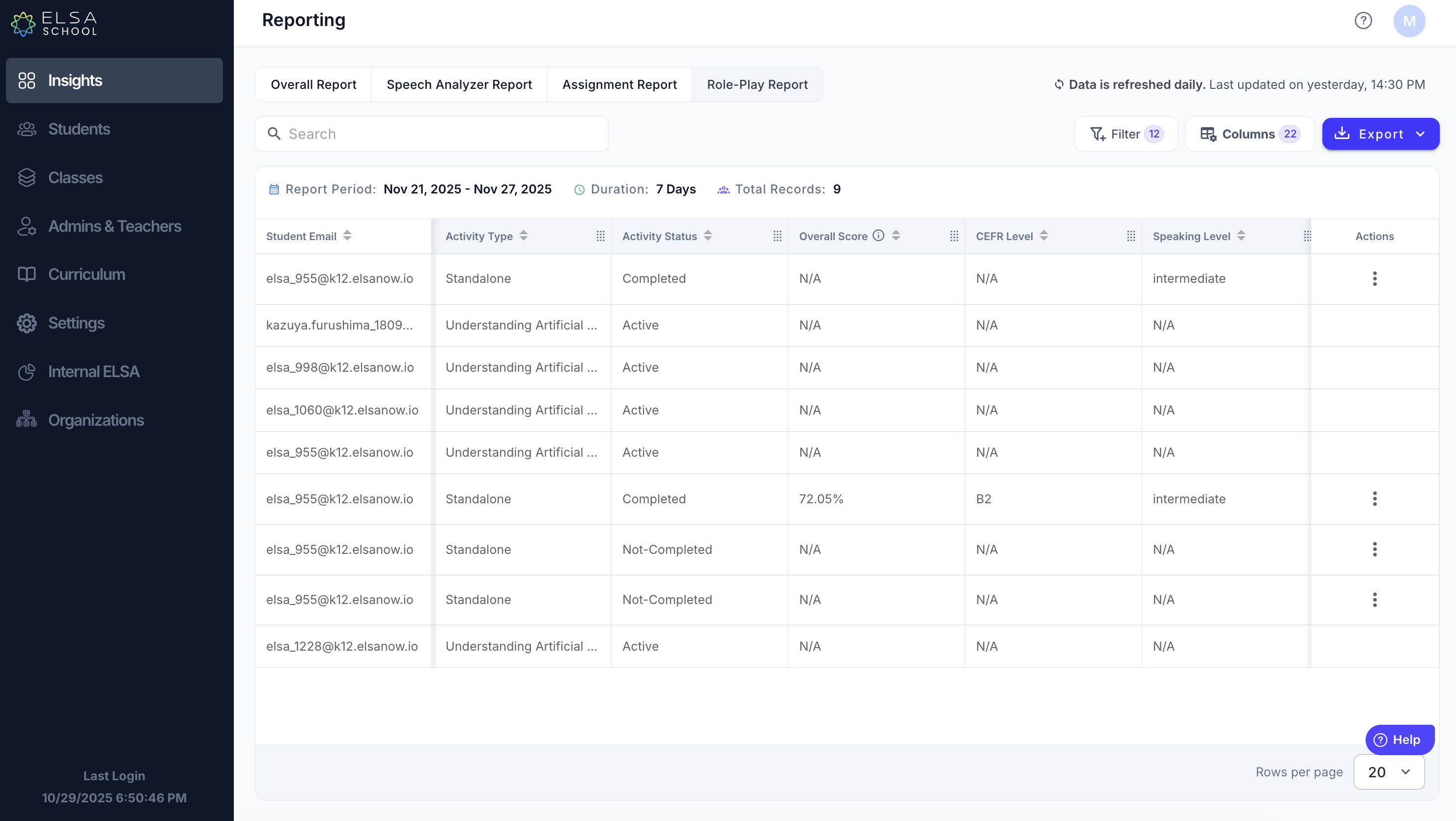
1. How to Access the Report
Navigate to the Insights > Reporting on the left-hand menu.
Select the Role-Play Report sub-tab at the top of the page.
2. Understanding Activity Types
Students can engage with ELSA AI Role-plays in two ways, both of which are tracked in this report:
Assignments: If a teacher assigns a specific role-play with a due date, the Activity Type column will show the name of the assignment.
Standalone: If a student practices a role-play freely within the Student App (without it being assigned), the Activity Type column will display as "Standalone".
3. Managing Data & Columns
You can customize the view to see exactly the data you need. Click the Columns button on the top right to toggle the following metrics:
Student Information
Student Email / First Name / Last Name: Identifies the student.
Class: The class the student belongs to.
Activity Details
Role-Play Name: The specific scenario the student practiced (e.g., "Ordering at a cafe").
Activity Type: Indicates if it was an "Assignment" (listed by name) or "Standalone" practice.
Activity Status: Shows the activity status.
If it is a Standalone practice, then the status can be "Completed" or "Not Completed".
If it is an Assignment, then the status can be "On-time", "Missed", or "Late".
Timing
Start Date / Due Date / Complete Date: Tracks the timeline of the activity.
Speaking Duration: The total time the student spent speaking during the session.
Scores & Levels
Overall Score: The student's English proficiency score for that specific attempt.
CEFR Level: The estimated CEFR level achieved in that session.
Skill Scores: Specific percentage scores for Pronunciation, Fluency, Intonation, Grammar, Vocabulary.
Skill Levels: Estimated proficiency levels for Speaking, Grammar, and Vocabulary (e.g., Elementary, Intermediate).
4. Exporting & Transcripts
Export Data: Click the blue Export button to download the full report as a CSV or XLSX file for further analysis.
View Transcripts: To see exactly what a student said, click the three dots (⋮) on the far right of a student's row. You can select View Transcript or Download Transcript.
Note: The ability to download the session audio is coming soon.
Important Notes (FAQ)
Data Latency: Please note there is a 24-hour lag in this reporting page. It takes time to gather and process the AI data, so activities completed today will appear in the report tomorrow.
Missing Grammar/Vocabulary Scores: You may sometimes see "N/A" for Grammar or Vocabulary scores. To generate accurate scores, the AI requires a sufficient amount of speech:
Grammar: Requires at least 50 words.
Vocabulary: Requires at least 75 words.
Even if the recording is short, ELSA will still provide an Overall Score based on Pronunciation, Intonation, and Fluency.
Was this article helpful?
That’s Great!
Thank you for your feedback
Sorry! We couldn't be helpful
Thank you for your feedback
Feedback sent
We appreciate your effort and will try to fix the article