This guide explains how to open and complete work your teacher assigns in the ELSA School student app. The app has been redesigned: your assignments are easy to find from home, grouped by due date, with quick actions at the bottom of the screen (including Speech Analyzer).
A single assignment may include more than one activity—for example, vocabulary, a read-aloud passage, and an AI roleplay in one assignment. Open the assignment and complete each part in order.
1. Log in and open an assignment
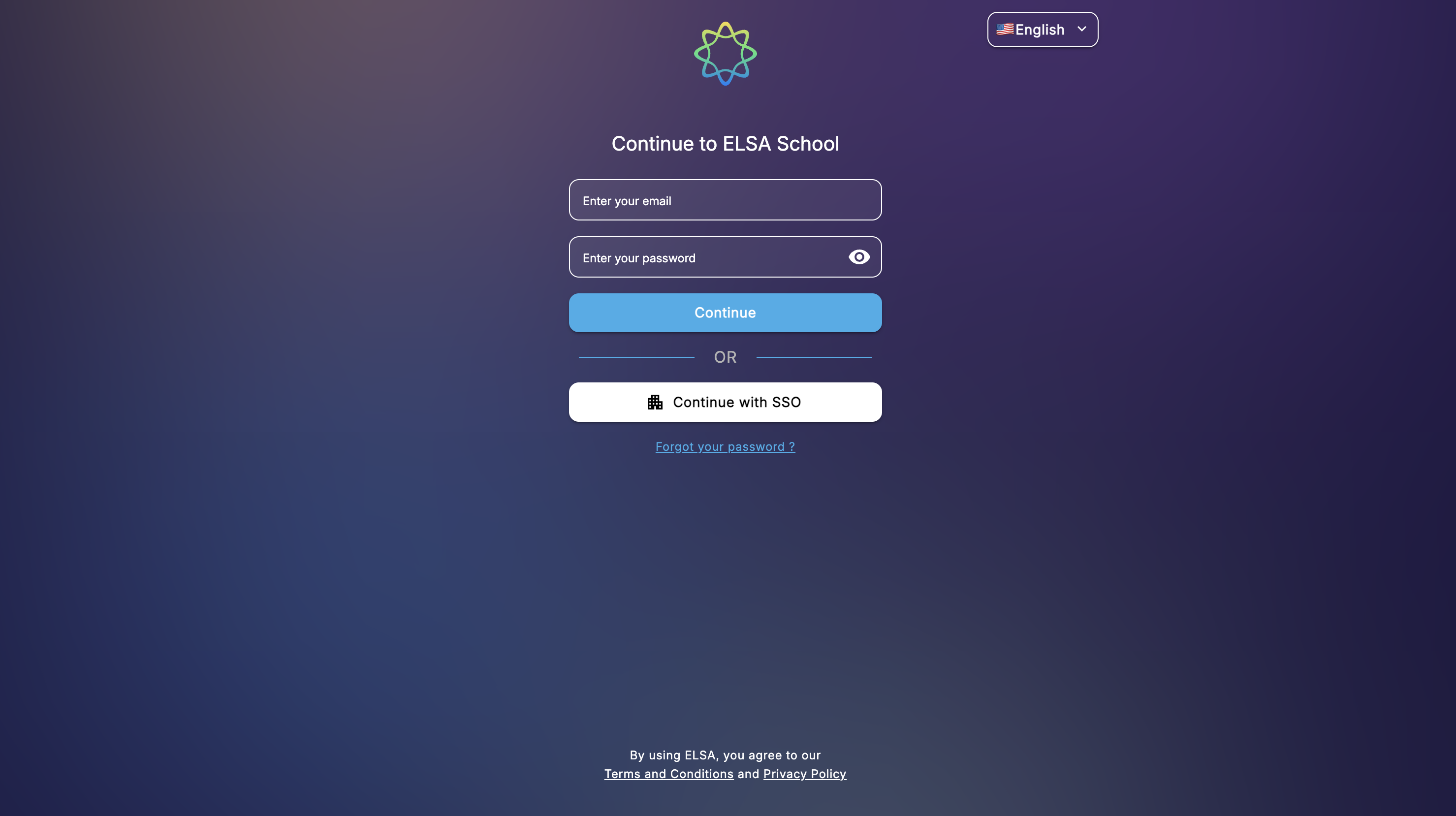
Sign in with the account your school or teacher gave you. You can access the student app on any web browser at student.elsaspeak.com.
From home, review your assignments. They are organized by due date so you can see what to do next.
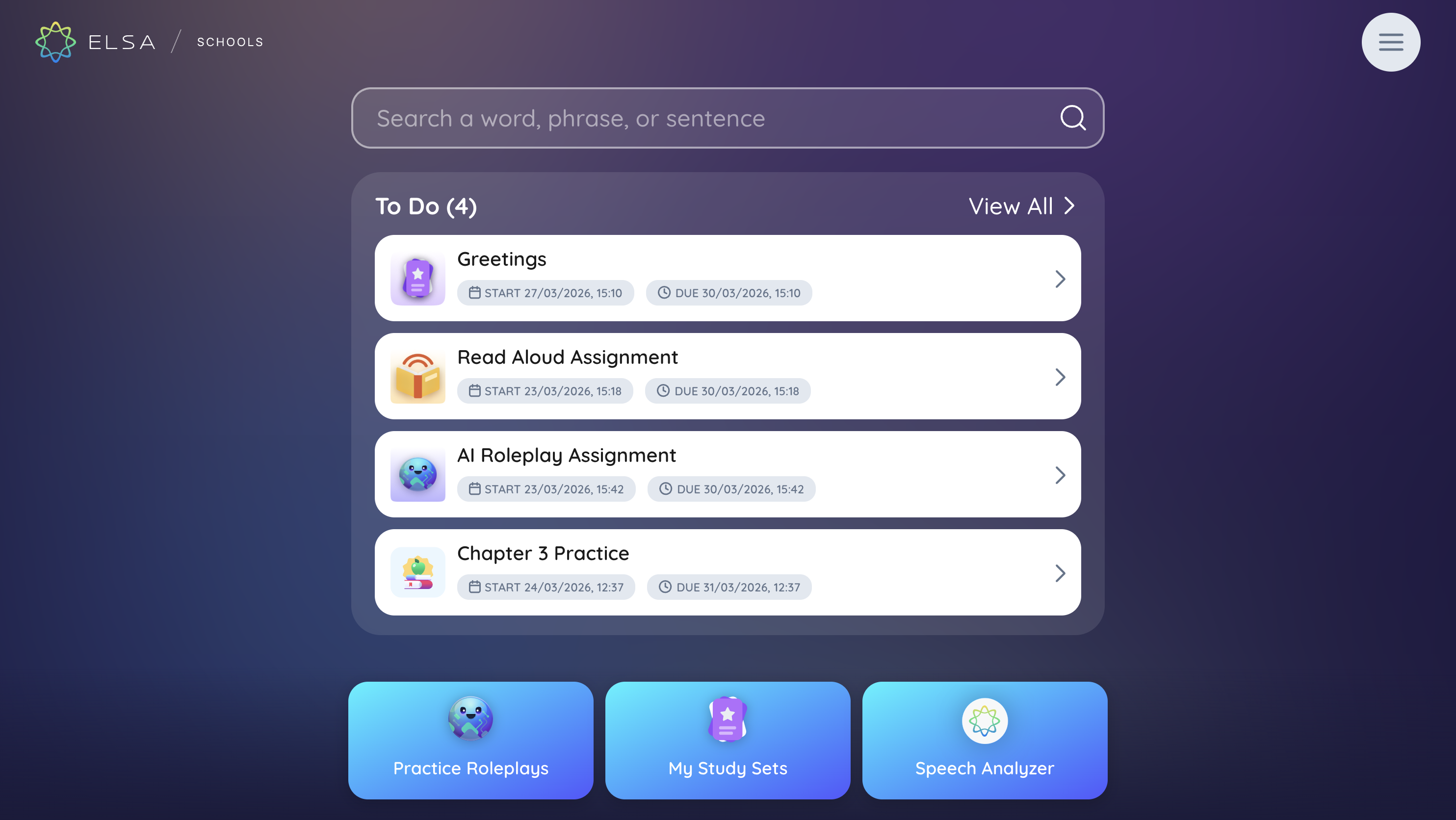
Use the quick access buttons at the bottom of the screen to jump to key areas (for example, Speech Analyzer).
Tap the assignment you want to work on.
2. Start the activity
Depending on your teacher's assignment, you may see Study Set items, Read Aloud, AI Roleplay, or a mix. Tap Start (or the action shown) to begin the first activity.
For activities that play a model voice, use the speaker control to listen first.
To record, tap the microphone. Wait until it turns green, then follow the on-screen instructions and speak.
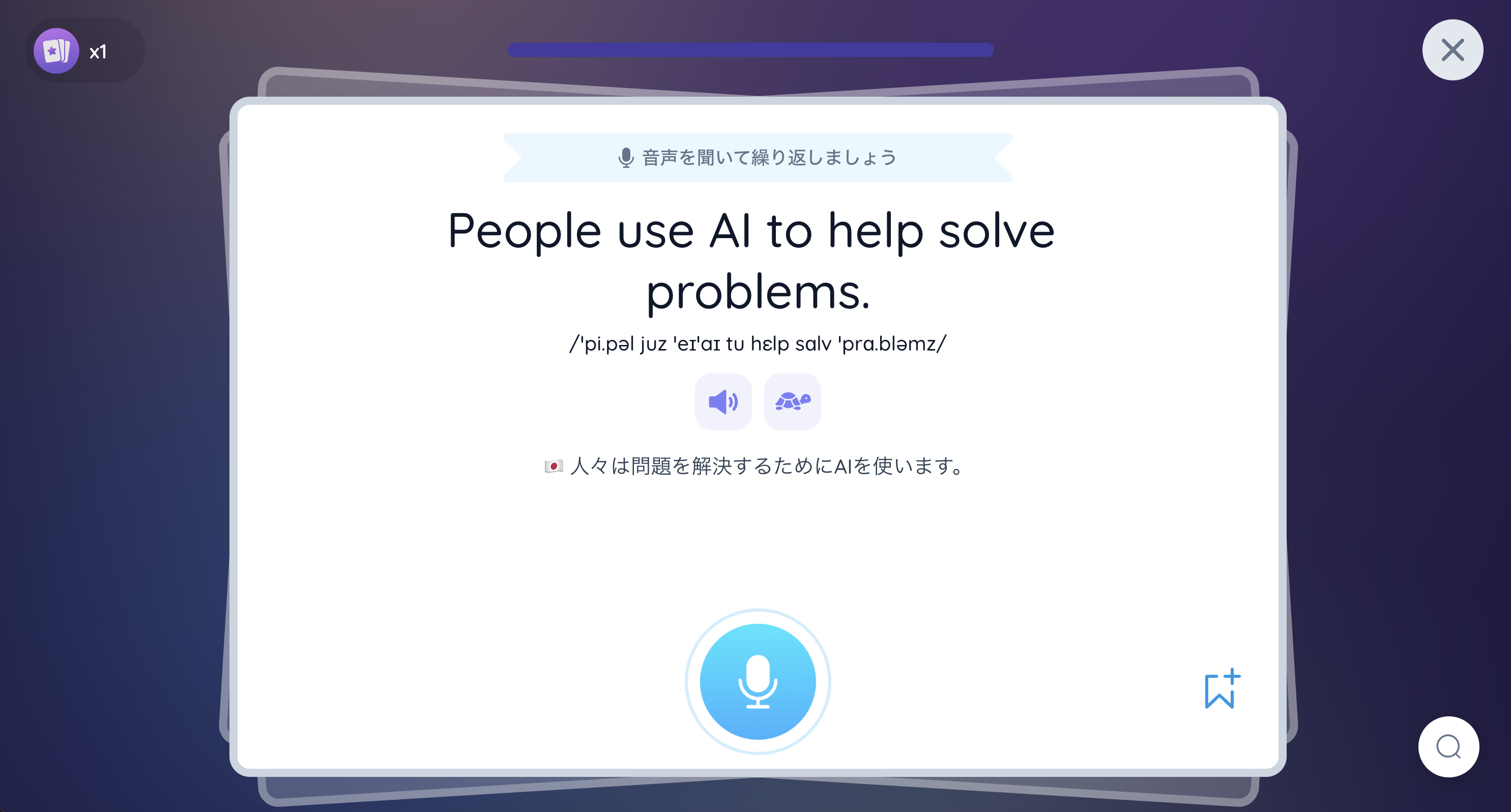
3. Study Set–style practice (example)
If your assignment includes vocabulary or line-by-line practice, you may see one word or phrase at a time. Listen to the model first. When you record, tap the microphone and wait until it turns green before you speak—otherwise the start of your answer may be cut off. You'll get color-coded feedback on your sounds (for example black / green / yellow / red) so you can see what to improve.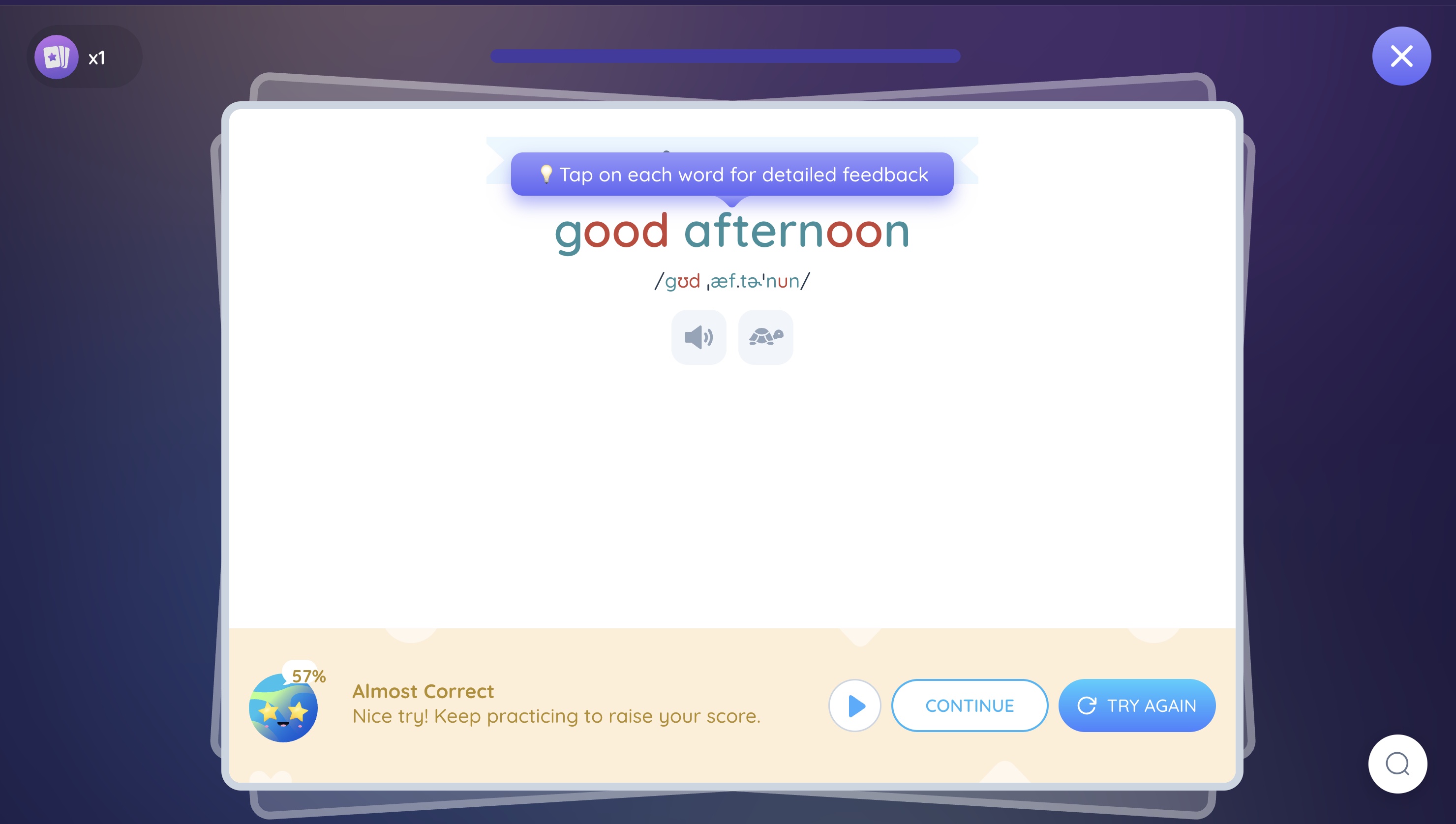
4. Finish and review
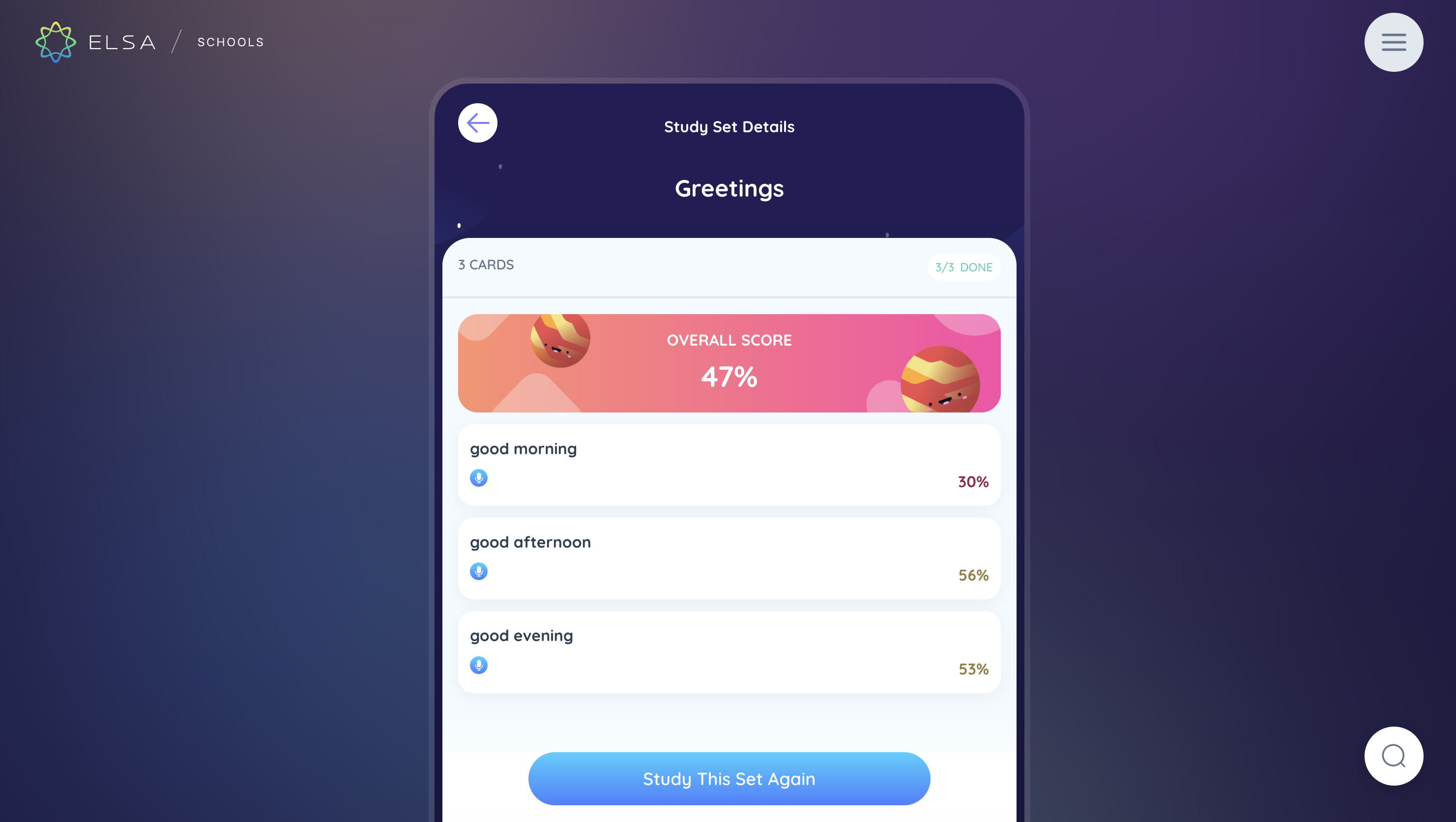
Complete all parts of the assignment. When you're done, you'll see scores and feedback for each activity type. You can often review difficult items or return home. Your teacher can see your results according to your school's settings.
For more detail on each activity type and how scoring works, see the other articles in this folder (Read Aloud, Study Sets, AI Roleplays, and scores).
Keep practicing—you've got this!
Was this article helpful?
That’s Great!
Thank you for your feedback
Sorry! We couldn't be helpful
Thank you for your feedback
Feedback sent
We appreciate your effort and will try to fix the article