The Insights Summary page provides a comprehensive overview of student performance and progress within your selected class and time period. This article explains each metric and visualization available in the dashboard.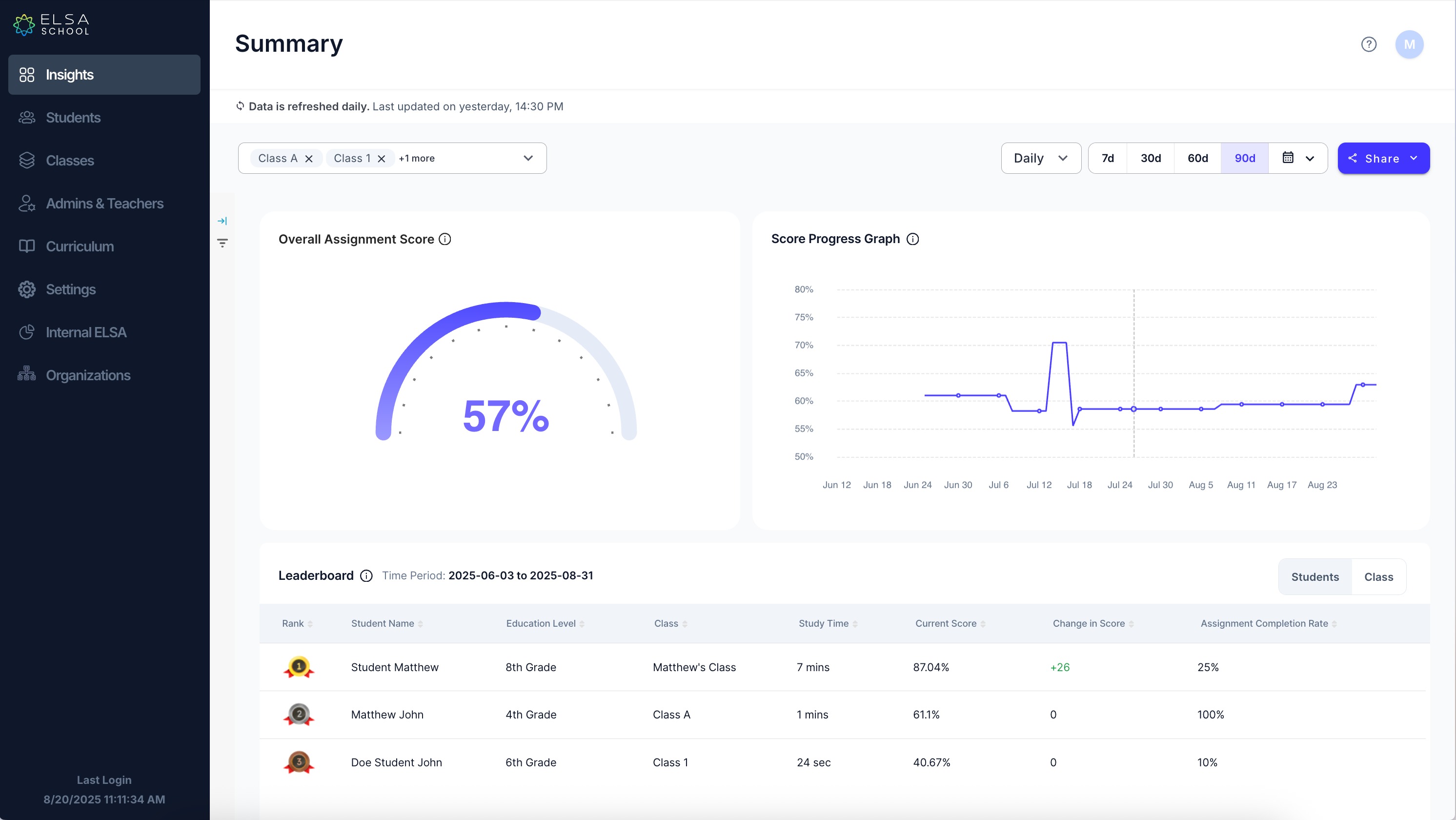
Available Metrics
Overall Assignment Score
What it measures: A comprehensive performance indicator that represents the average learning progress across all students in the selected class and time period.
How it's calculated: The Overall Assignment Score is calculated as the average of average assignment scores across all activities (Study Set + Read Aloud + AI Roleplay), across all students in the selected class filter and time period, including repeated assignment scores.
Example calculation:
Student A:
- Study Set average: (50% + 70%) ÷ 2 = 60%
- Read Aloud average: (30% + 40%) ÷ 2 = 35%
- AI Roleplay average: 50%
- Student A's overall score: (60% + 35% + 50%) ÷ 3 = 48.3%
Student B:
- Study Set average: (60% + 80%) ÷ 2 = 70%
- Read Aloud average: (50% + 60%) ÷ 2 = 55%
- AI Roleplay average: 70%
- Student B's overall score: (70% + 55% + 70%) ÷ 3 = 65%
Class Overall Assignment Score: (48.3% + 65%) ÷ 2 = 56.65%
What it tells you: This score gives you a single, comprehensive view of how well your students are performing across all learning activities. Higher scores indicate better overall performance and comprehension.
Score Progress Graph
What it measures: The change in Overall Assignment Score over the selected time period for the chosen class filter.
How to interpret it:
- Upward trend: Students are improving their performance over time
- Downward trend: Performance may be declining and may require intervention
- Flat trend: Performance is consistent but may indicate a learning plateau
What it tells you: This visualization helps you track learning progress and identify patterns in student performance. Use it to spot trends, celebrate improvements, or identify when additional support may be needed.
Leaderboard
What it measures: Rankings of students or classes based on their Overall Assignment Score, with additional performance metrics.
Key components:
Student/Class Ranking
- Ranking basis: Higher Overall Assignment Scores result in higher rankings
- Display: Shows comparative performance across your selected group
Change in Score
- Formula: Latest Score - First Score
- First Score: The average assignment score on the student's first day of practice
- Latest Score: The average assignment score on the student's most recent day of practice
- What it shows: Whether students are improving (+), declining (-), or maintaining (0) their performance
Assignment Completion Rate
- Formula: Number of Completed Assignments ÷ Total Assigned Assignments
- Important notes:
- Total Assigned Assignments: Not affected by your selected time frame filter
- Number of Completed Assignments: Only counts assignments completed within your selected time frame
- What it tells you: How consistently students are completing their assigned work
What it tells you: The leaderboard provides a competitive view of performance while highlighting improvement trends and completion patterns. Use it to recognize high achievers, identify students who may need additional support, and track completion rates.
Tips for Using Insights Summary
- Regular Monitoring: Check the Score Progress Graph weekly to identify trends early
- Balanced View: Use both the Overall Assignment Score and Completion Rate to get a complete picture of student engagement
- Intervention Timing: Look for declining trends in the Progress Graph as indicators for when to provide additional support
- Celebration Opportunities: Use the leaderboard and positive score changes to recognize student achievements
- Time Period Selection: Adjust your time period filter to focus on specific learning phases or identify seasonal patterns
Frequently Asked Questions
Q: How often is the data updated? A: The data updates daily at 14:30 local time.
Q: What counts as a "completed" assignment? A: An assignment is considered completed when the student finishes the activity and gets a score.
For additional support with interpreting your dashboard data or adjusting settings, please contact your ELSA School administrator or submit a support ticket.
Was this article helpful?
That’s Great!
Thank you for your feedback
Sorry! We couldn't be helpful
Thank you for your feedback
Feedback sent
We appreciate your effort and will try to fix the article