The Saved Reports feature allows you to save your preferred filter and column configurations as presets. This saves you time by letting you instantly reload your most frequently used report views. Additionally, you can schedule these reports to be automatically emailed to you or other staff members on a recurring basis.
Note: This feature applies to all reports within the Insights (Reporting) page.
1. Customize Your Report View
Before saving a report, you must set up the data exactly how you want to see it.
Navigate to the Insights tab on the left-hand menu.
Select the specific report type you wish to view (e.g., Overall Report).
Set Filters: Click the Filter button to define parameters like Date Range (7, 30, 60, or 90 days), Class, or Student Status. Click Apply.
Choose Columns: Click the Columns button to customize the table. Check or uncheck boxes to show specific data points like "Total Study Time" or "Overall Assignment Score."
2. Save the Configuration
Once your report looks right, save this view for future use.
Click the Saved Reports button at the top right of the table.
Select + Save Current Filters from the menu.
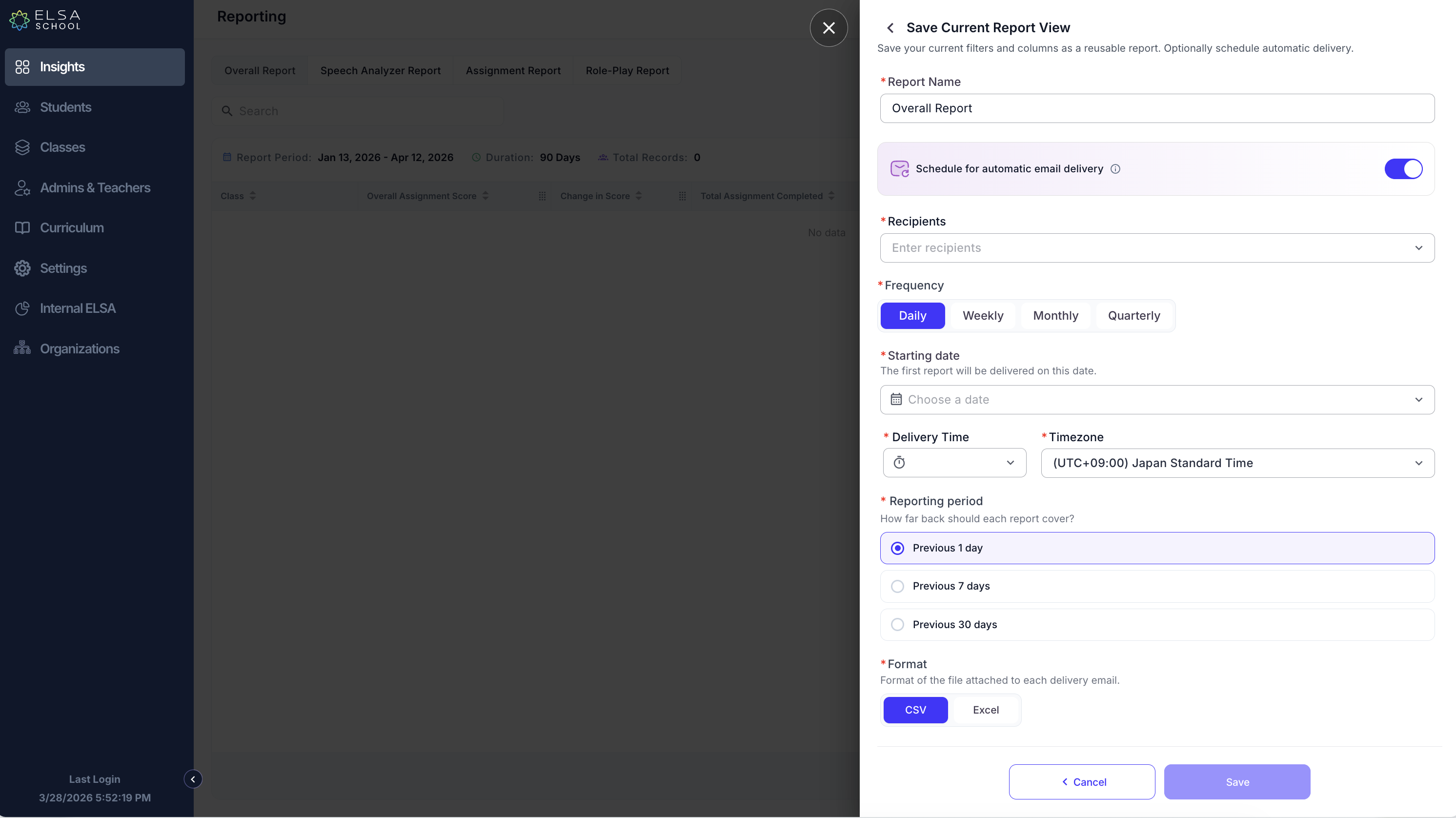
In the "Save Current Report View" window, enter a Report Name (e.g., "Weekly Progress - Class A").
3. Schedule Automated Email Delivery (Optional)
You can automate the delivery of this report so it arrives in your inbox automatically.
In the save window, toggle the switch for Schedule for automatic email delivery.
Recipients: Select the staff members who should receive this report from the dropdown list.
Frequency: Choose how often the report should be sent (Daily, Weekly, Monthly, or Quarterly).
Starting Date: Select the date you want the first report to be delivered.
Delivery Time & Timezone: Set the specific time and your local timezone for the email arrival.
Reporting Period: Choose how far back the data in each report should cover (e.g., Previous 7 days).
Format: Select your preferred file format (CSV or Excel).
4. Finish and Access
Click Save to complete the process. You will see a "Report saved successfully" message.
To access your presets later, click the Saved Reports button. You can view the creator, frequency, and when the next automated report is scheduled to run.
Important Notes on Scheduling & Data
Logic for Daily Delivery: The report runs the same day if the selected time has not passed; otherwise, it runs the next day.
Weekly/Monthly/Quarterly: Weekly reports run on Sundays. Monthly reports run on the last day of the month. Quarterly reports run on the last day of each quarter (March 31, June 30, Sept 30, Dec 31).
Data Latency: Report data may be delayed by up to 24 hours as it is fetched from our data warehouse, not in real-time.
Processing Time: The "Next Run At" time is when the server begins fetching the data. Recipients may see a delay of a few minutes depending on the file size.
Was this article helpful?
That’s Great!
Thank you for your feedback
Sorry! We couldn't be helpful
Thank you for your feedback
Feedback sent
We appreciate your effort and will try to fix the article