Overview
This guide will help your IT administrator set up Single Sign-On (SSO) between your Microsoft Entra ID (formerly Azure AD) and ELSA School. With SSO enabled, your students and teachers can log into ELSA School using their existing school Microsoft credentials, eliminating the need for separate passwords.
Before You Begin
What You'll Provide
- The email domain that you will use for SSO (for example: xyz@schooldomain.com)
What You'll Need
- Administrative access to your organization's Microsoft Entra ID (Azure AD) portal
- SSO credentials (ELSA will provide), which include:
- SP Entity ID (Service Provider Entity ID)
- ACS URL (Assertion Consumer Service URL)
Step 1: Create an ELSA Application in Microsoft Entra ID
Log in to your Microsoft Azure Portal
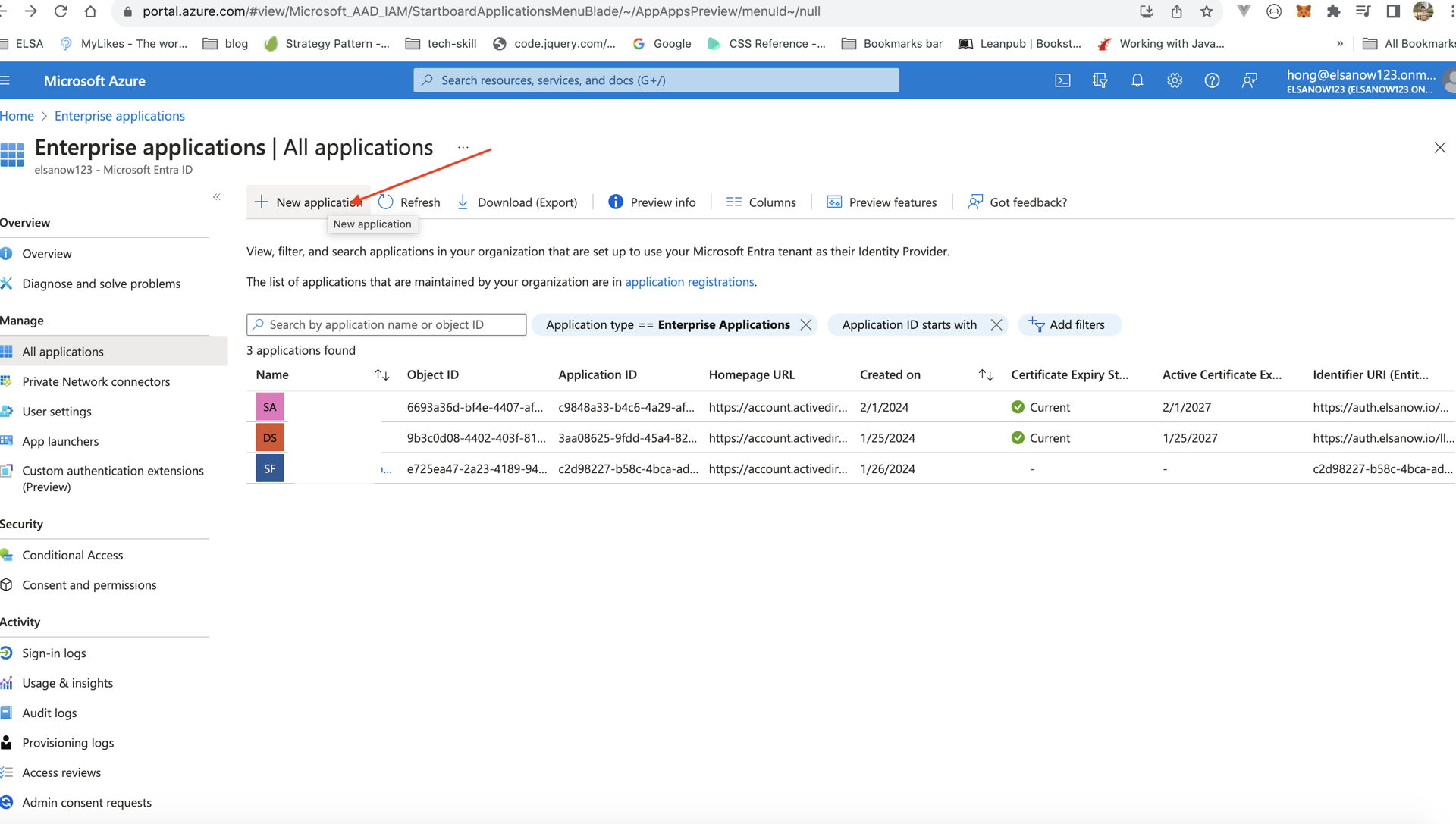
Navigate to Enterprise Applications:
- Click on "Microsoft Entra ID" (or "Azure Active Directory")
- Select "Enterprise applications" from the left menu
- Click "+ New application"
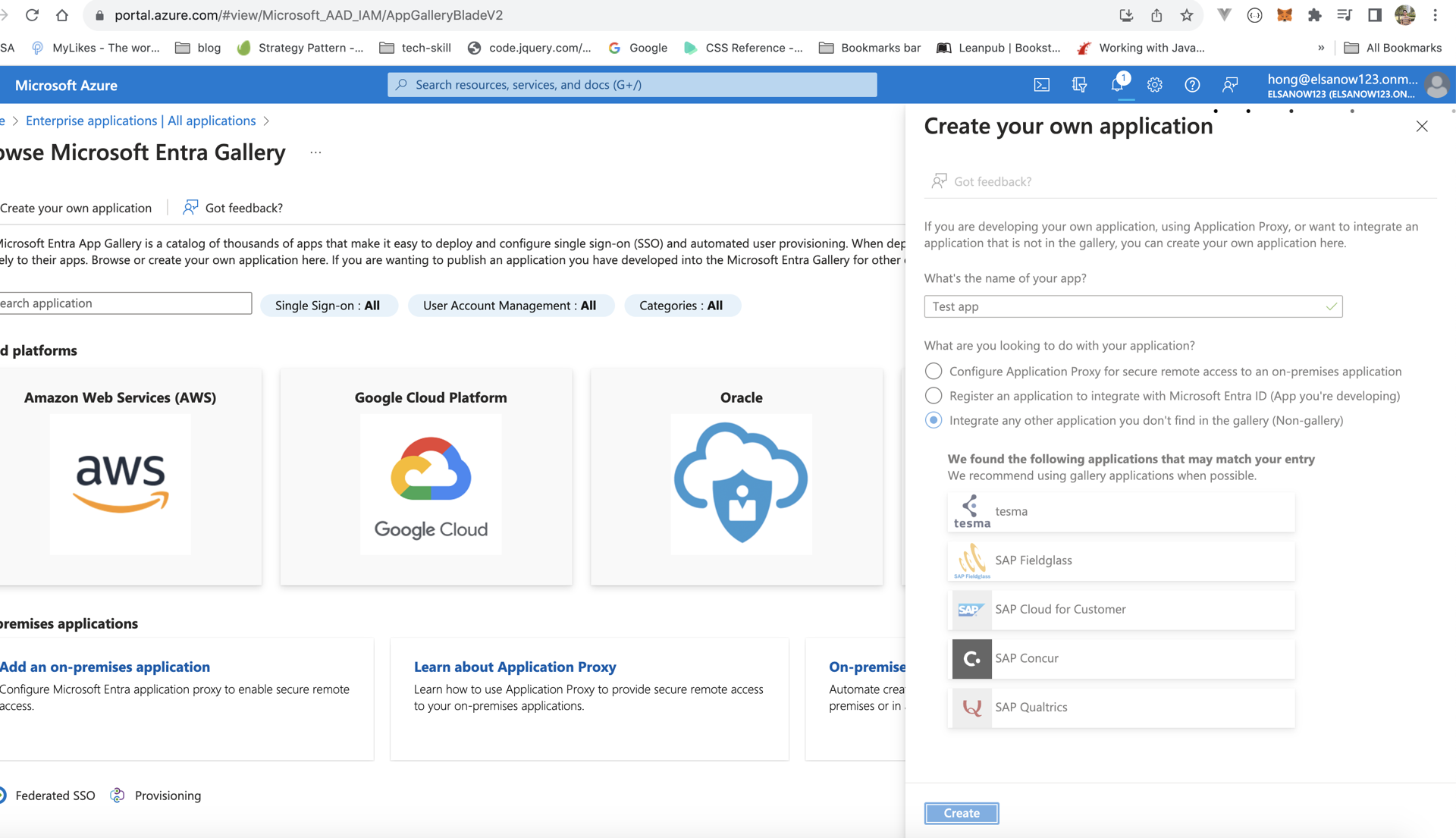
Create your own application:
- Click "Create your own application"
- Enter a name for the application (e.g., "ELSA School SSO")
- Select "Integrate any other application you don't find in the gallery (Non-gallery)"
- Click "Create"
Step 2: Configure SAML-Based Single Sign-On
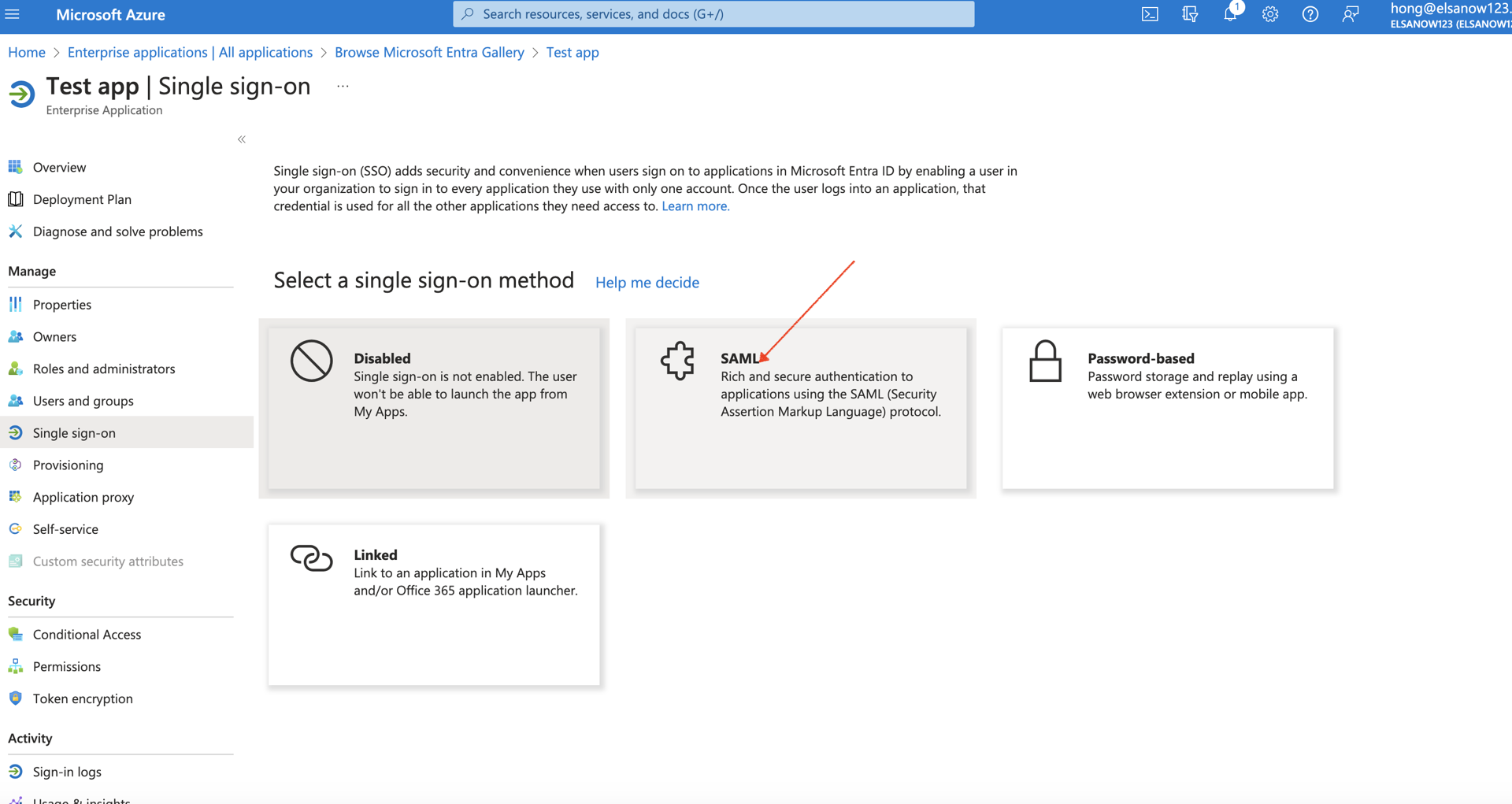
Access SSO settings:
- In your newly created ELSA application, click "Single sign-on" from the left menu
- Select "SAML" as the single sign-on method
Configure Basic SAML Settings:
- Click "Edit" in the "Basic SAML Configuration" section
- Enter the following values provided by ELSA:
- Identifier (Entity ID): Enter the
SP Entity IDfrom ELSA - Reply URL (Assertion Consumer Service URL): Enter the
ACS URLfrom ELSA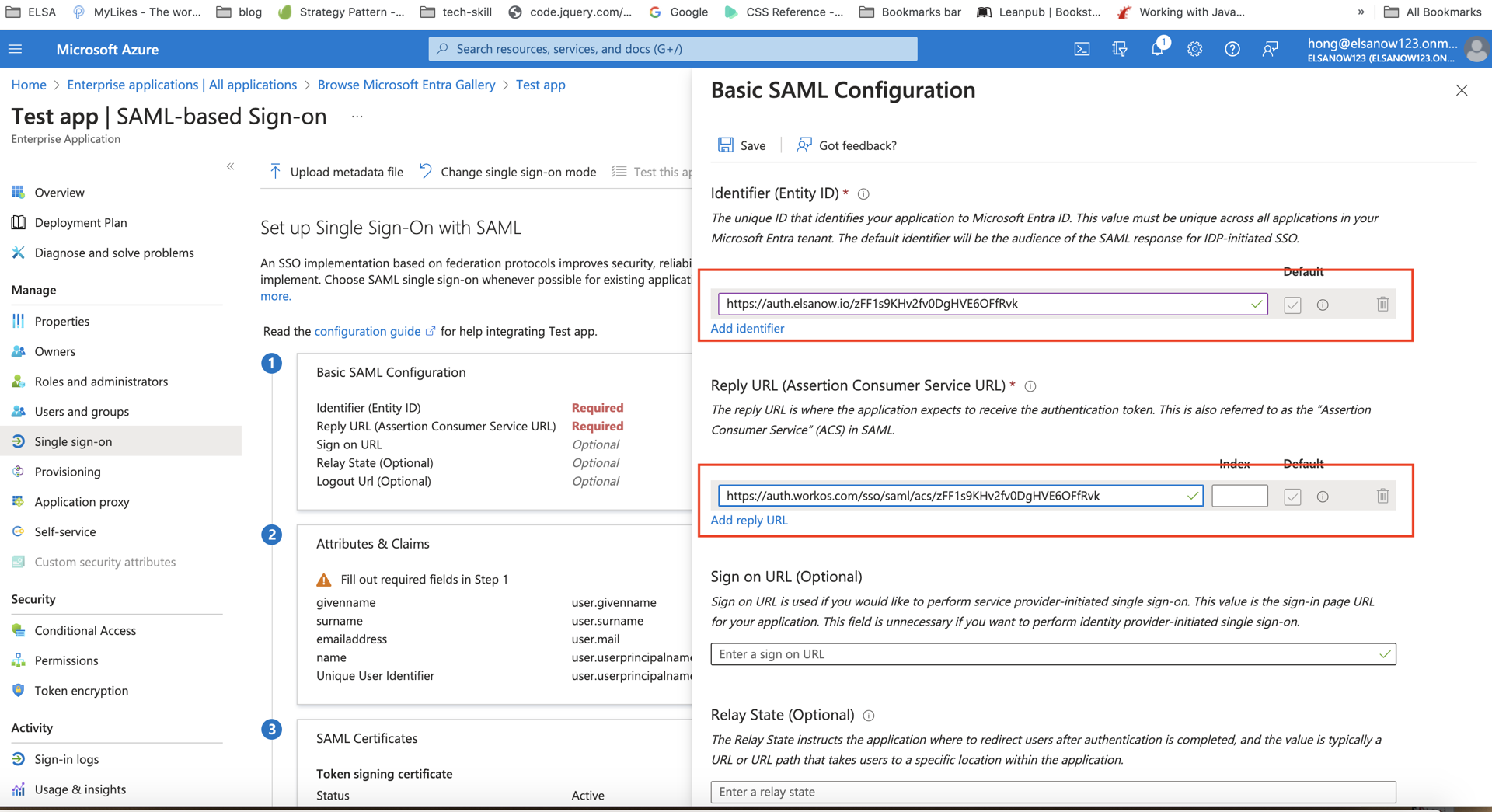
- Identifier (Entity ID): Enter the
- Click "Save"
Step 3: Configure User Attributes and Claims
Edit Attributes & Claims:
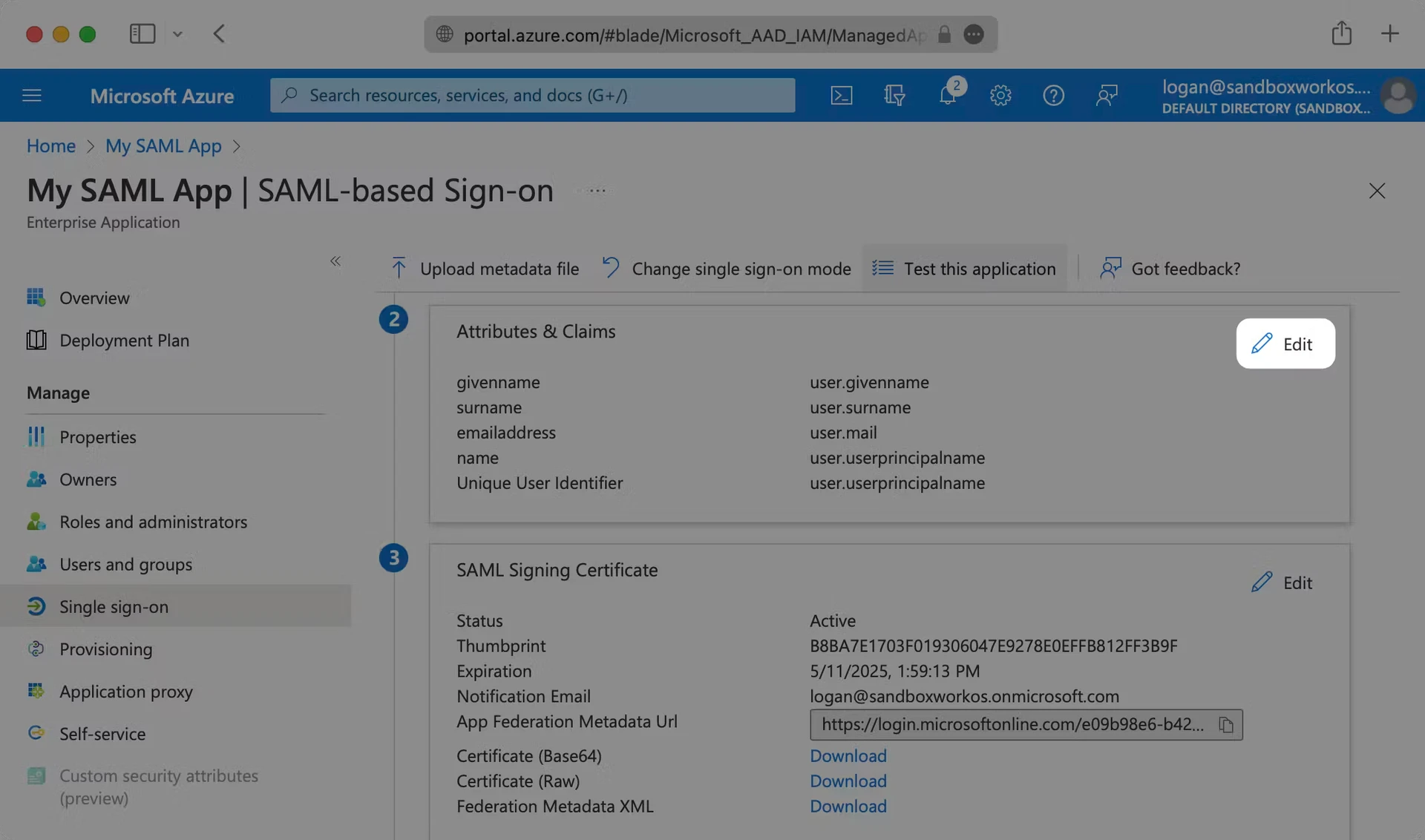
- Click "Edit" in the "Attributes & Claims" section
- Click "Edit" in the "Attributes & Claims" section
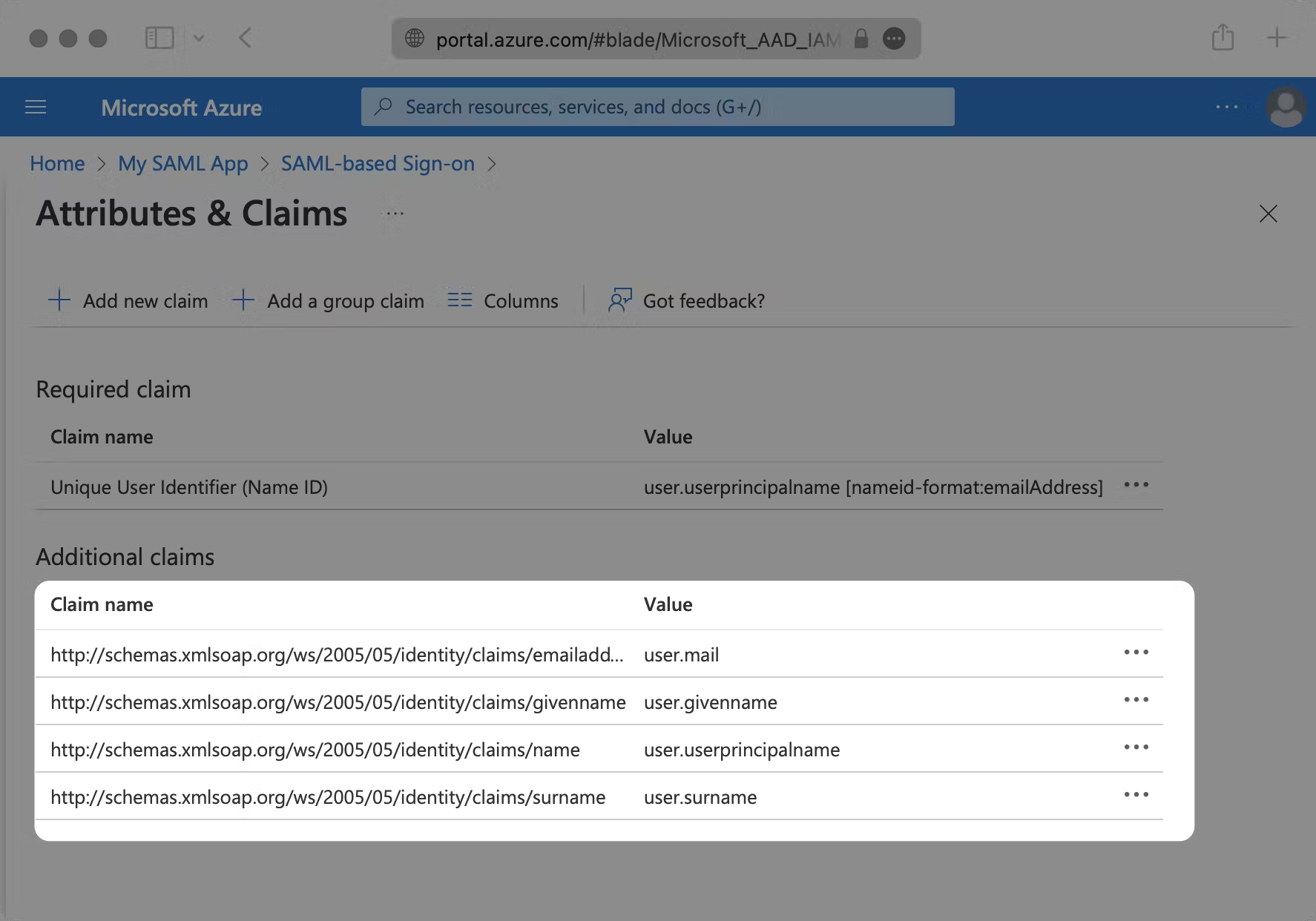
Verify the following mappings are set:
Claim Name Source Attribute http://schemas.xmlsoap.org/ws/2005/05/identity/claims/emailaddressuser.mailhttp://schemas.xmlsoap.org/ws/2005/05/identity/claims/givennameuser.givennamehttp://schemas.xmlsoap.org/ws/2005/05/identity/claims/nameuser.userprincipalnamehttp://schemas.xmlsoap.org/ws/2005/05/identity/claims/surnameuser.surnameImportant: These mappings ensure ELSA receives the correct user information. If you need to change these mappings for any reason, please contact ELSA support first, as changes may affect user authentication.
Step 4: Provide SAML Metadata to ELSA
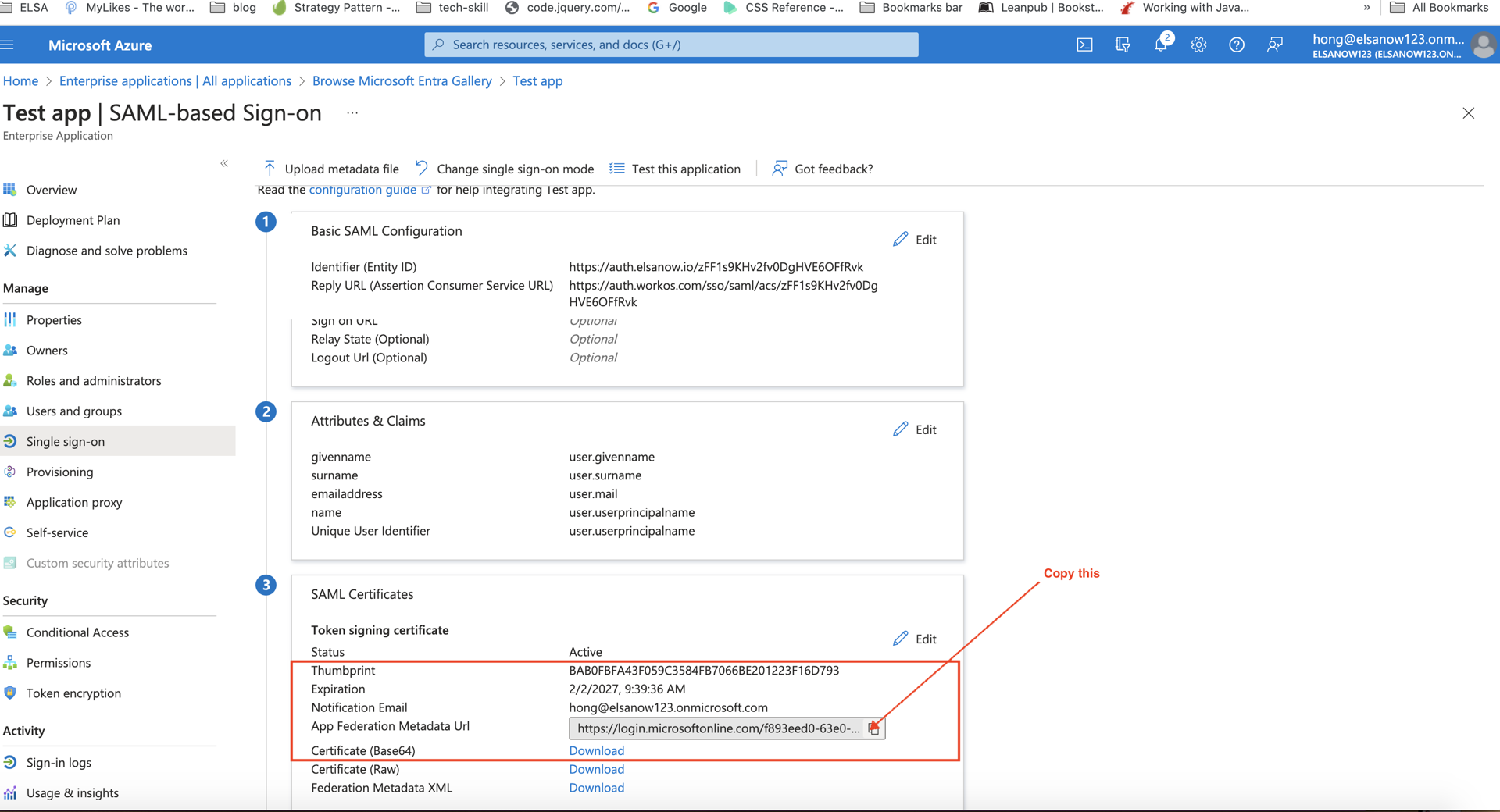
After configuring SAML, copy the SAML Certificate (App Federation Metadata URL) from SAML configuration (see pic) and send it back to the ELSA IT team.
Step 5: Assign Users and Groups (After ELSA Confirms Setup)
Once ELSA confirms that SSO is configured:
Navigate to Users and Groups:
- In your ELSA application, click "Users and groups" from the left menu
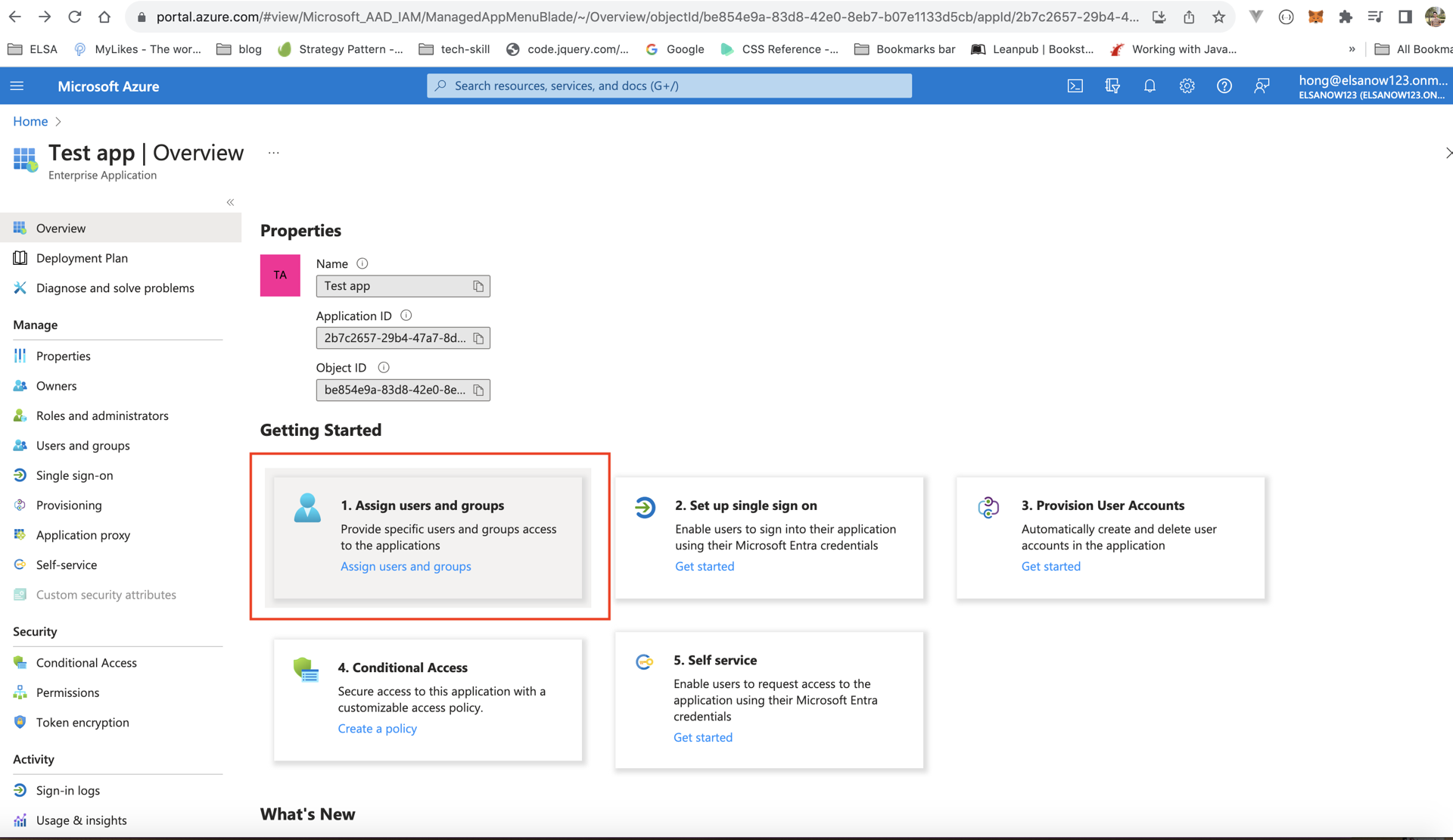
- Click "+ Add user/group"
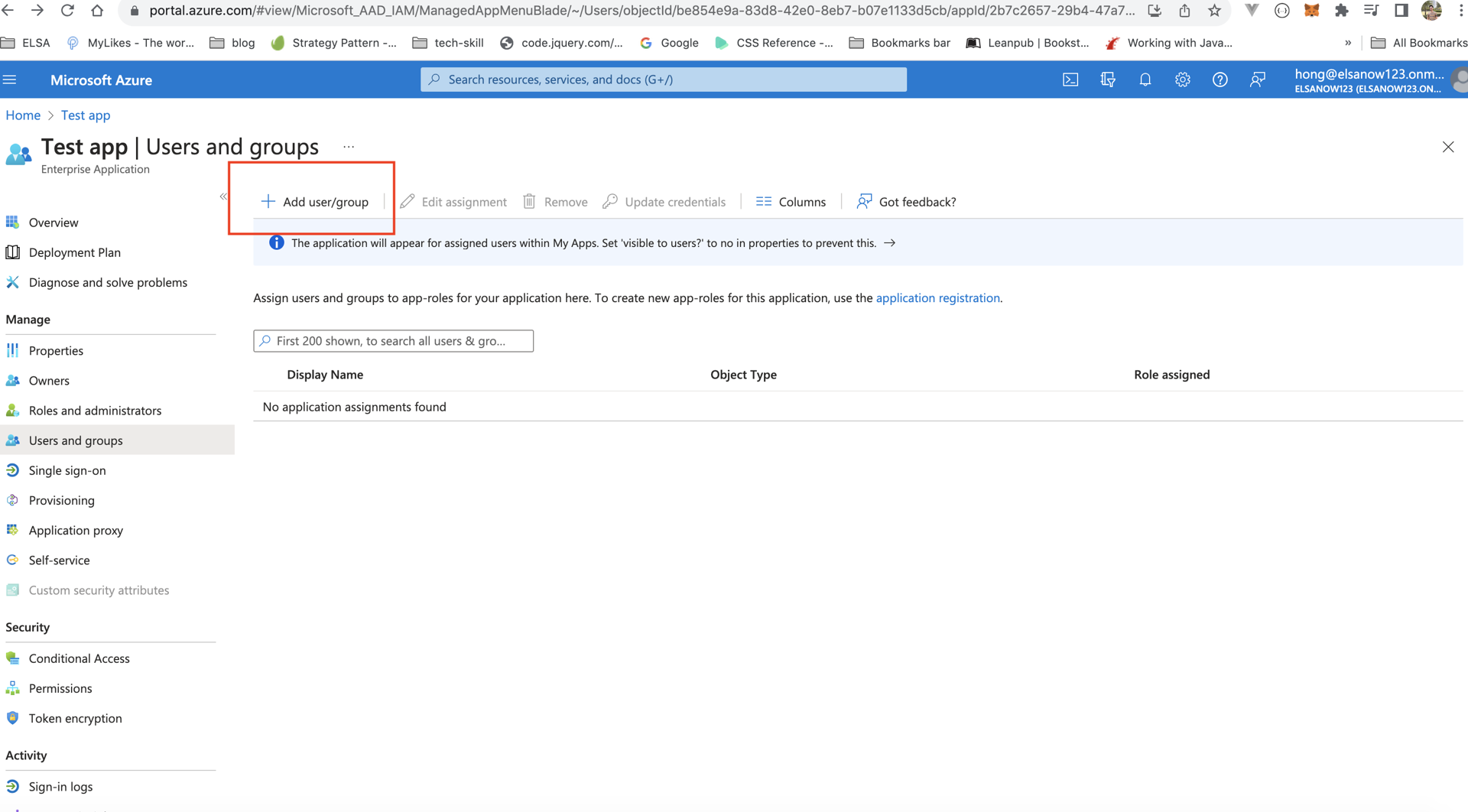
- In your ELSA application, click "Users and groups" from the left menu
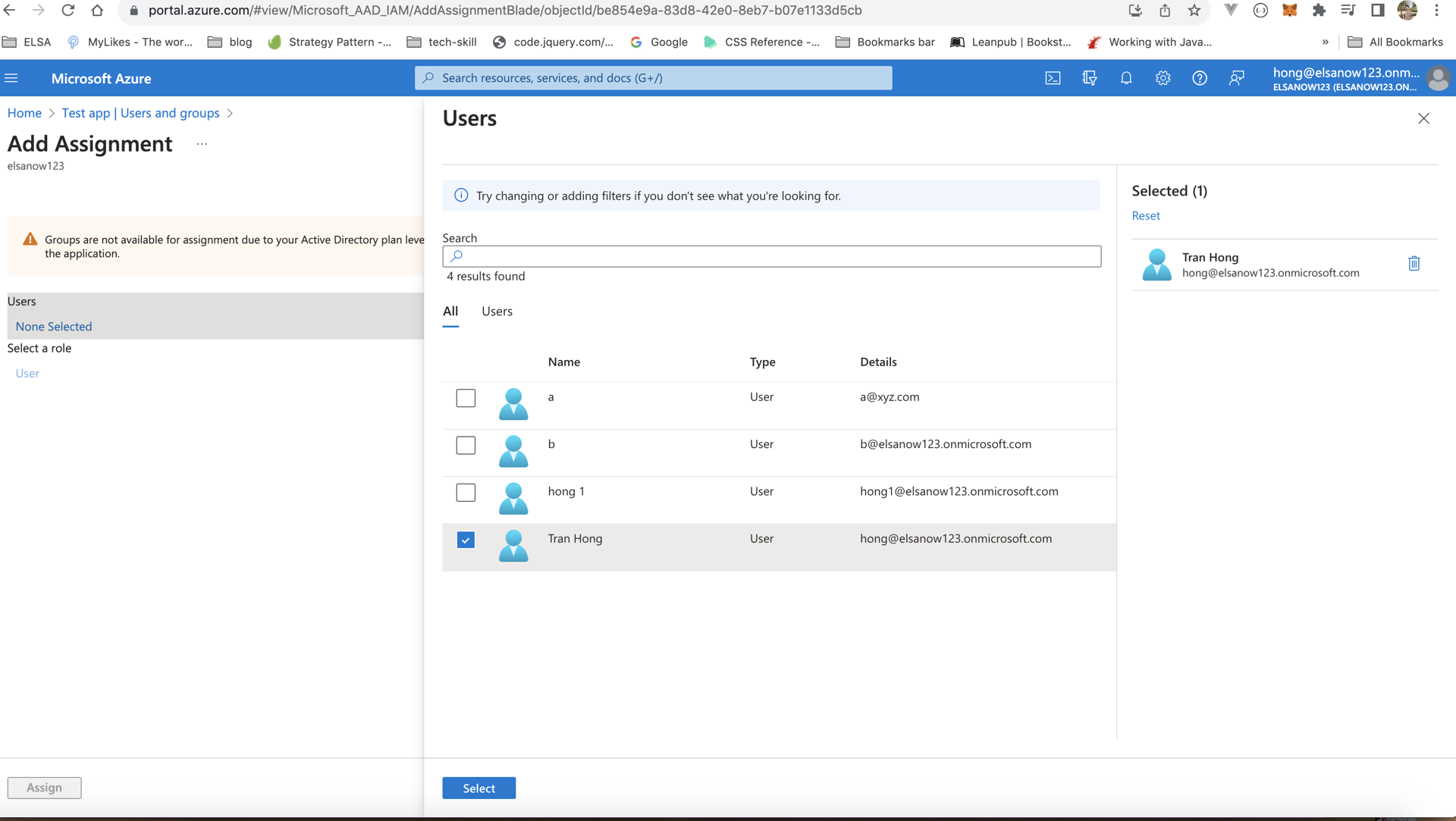
Assign access:
- Click "Users" (or "Groups") under "None Selected"
- Select the users or groups who should have access to ELSA
- Click "Select" at the bottom
- Click "Assign"
What this means:
- Only assigned users/groups will be able to log into ELSA using SSO
- Unassigned users will not see ELSA in their Microsoft apps
- You can add or remove users at any time
Testing Your SSO Connection
- Assign yourself as a test user first
- Log out of ELSA School if currently logged in
- Navigate to your ELSA School login page
- Click "Sign in with SSO"
- Enter your school email address
- Verify you're redirected to Microsoft login
- Confirm you can successfully log into ELSA
Troubleshooting Common Issues
Unable to login error
Possible causes:
- ELSA hasn't finished configuring SSO on our end yet
- The metadata URL wasn't sent to ELSA
- The SP Entity ID or ACS URL was entered incorrectly
Solution: Verify with ELSA that setup is complete, and double-check the values entered in Step 2.
User is assigned but can't log in
Possible causes:
- User's email in Azure AD doesn't match their email in ELSA
- User attributes aren't configured correctly
- User's account isn't active in ELSA
Solution:
- Verify the user's email matches in both systems
- Check that attribute mappings in Step 3 are correct
- Contact ELSA support to verify the user's account status
"Attributes & Claims" section shows different mappings
Possible cause:
- Your Azure AD might have custom claim configurations
Solution:
- Contact ELSA support before modifying these
- We can work with your existing attribute setup if needed
FAQ
Q: Can we use SSO and regular email/password login at the same time?
A: Yes! SSO is an additional login option. Users can still use email/password if needed.
Q: How long does SSO setup take?
A: Azure configuration takes 20-30 minutes. ELSA's configuration takes 1-2 business days after receiving your metadata.
Q: Do we need to create ELSA accounts for users first?
A: Yes, users must exist in ELSA School before they can log in via SSO. Contact your CSM about bulk user upload if needed.
Q: Can we use SSO for both students and teachers?
A: Yes, any user type can use SSO as long as they have a Microsoft account in your directory.
Q: What happens if a user's email changes?
A: Contact ELSA support to update the email in ELSA School to match the new Azure AD email.
Was this article helpful?
That’s Great!
Thank you for your feedback
Sorry! We couldn't be helpful
Thank you for your feedback
Feedback sent
We appreciate your effort and will try to fix the article