For the best experience on iPads and iPhones, we recommend adding the ELSA School student webpage to your Home Screen. This turns the website into a dedicated web app.
1. Open the student app site
Open the student app site in Safari.
2. Open the Share Menu
Look for the Share icon (a square with an arrow pointing up).
On an iPhone, this is usually at the bottom center of the screen.
On an iPad, this is usually at the top right of the screen.
Tap the icon to open the menu.
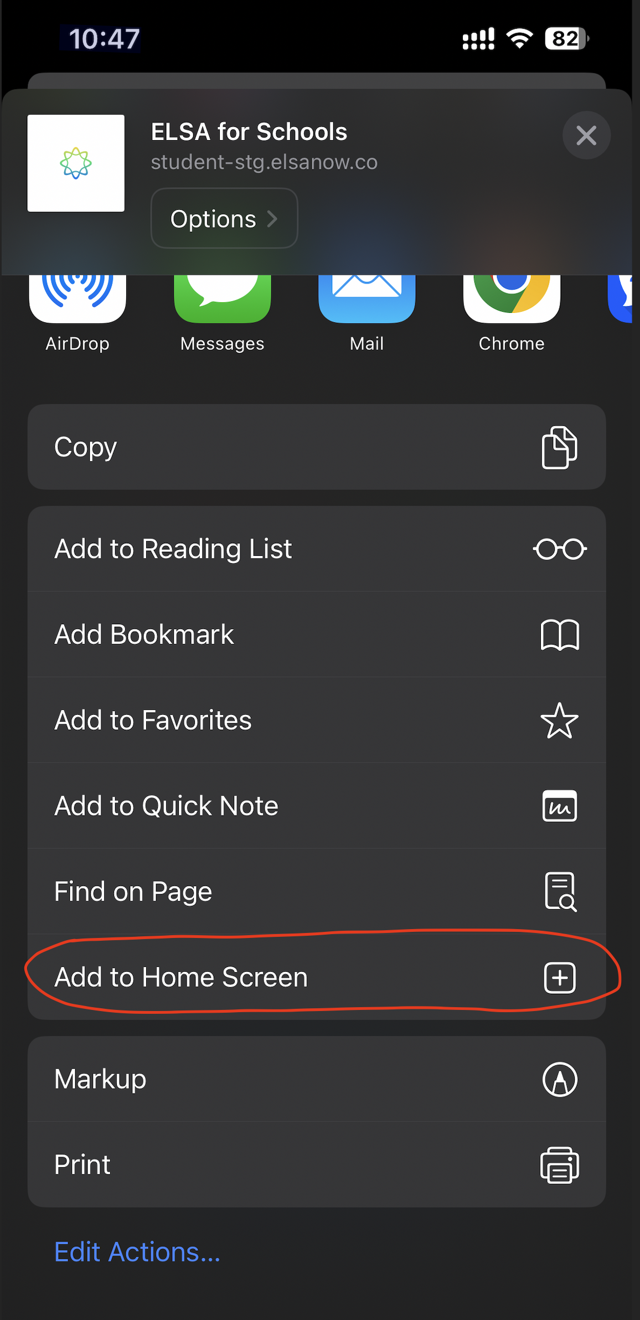
3. Select "Add to Home Screen"
Scroll down the list of options until you find Add to Home Screen.
Tap it to proceed.
4. Name and Add the App
You will see a confirmation screen. You can rename the app or keep the default name.
Click the blue Add button in the top right corner.
5. Launch and Log In
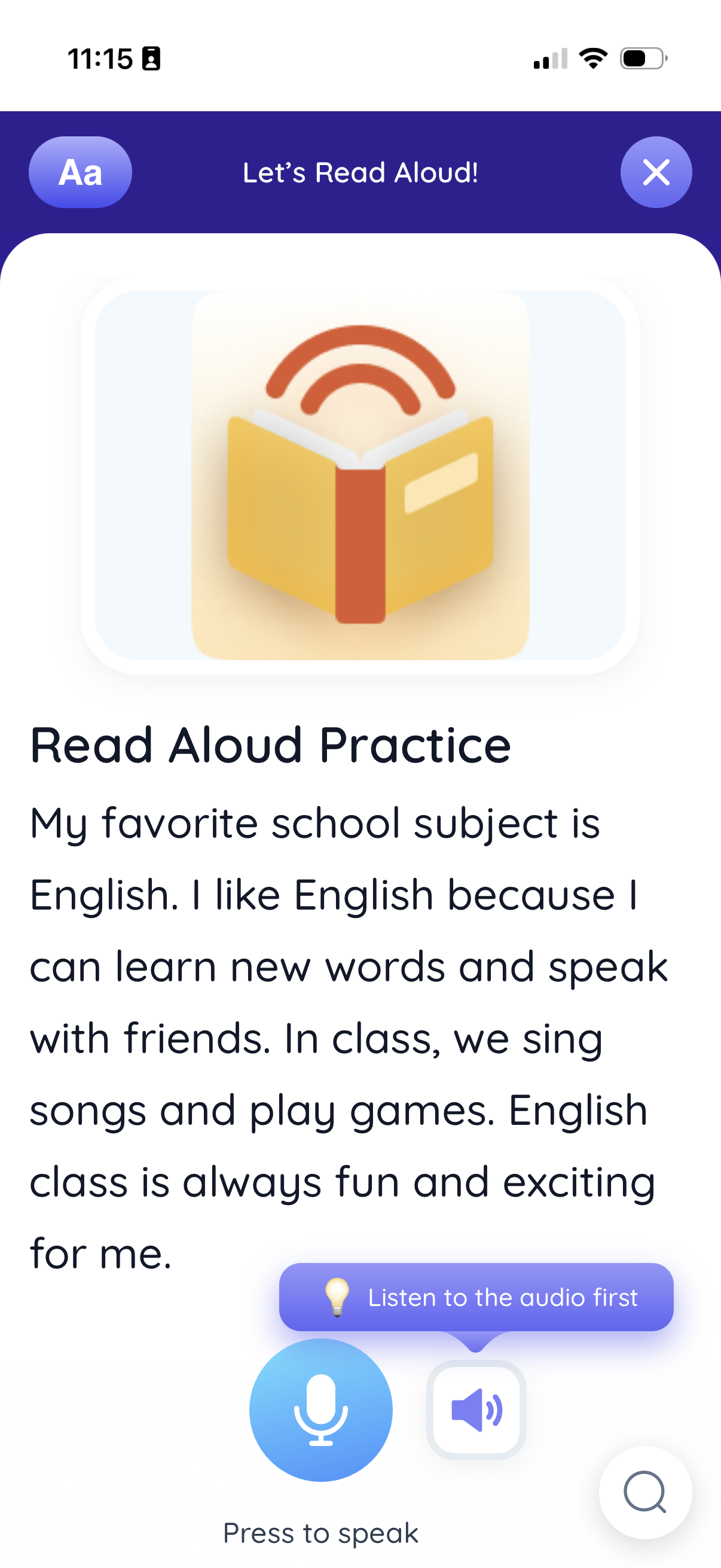
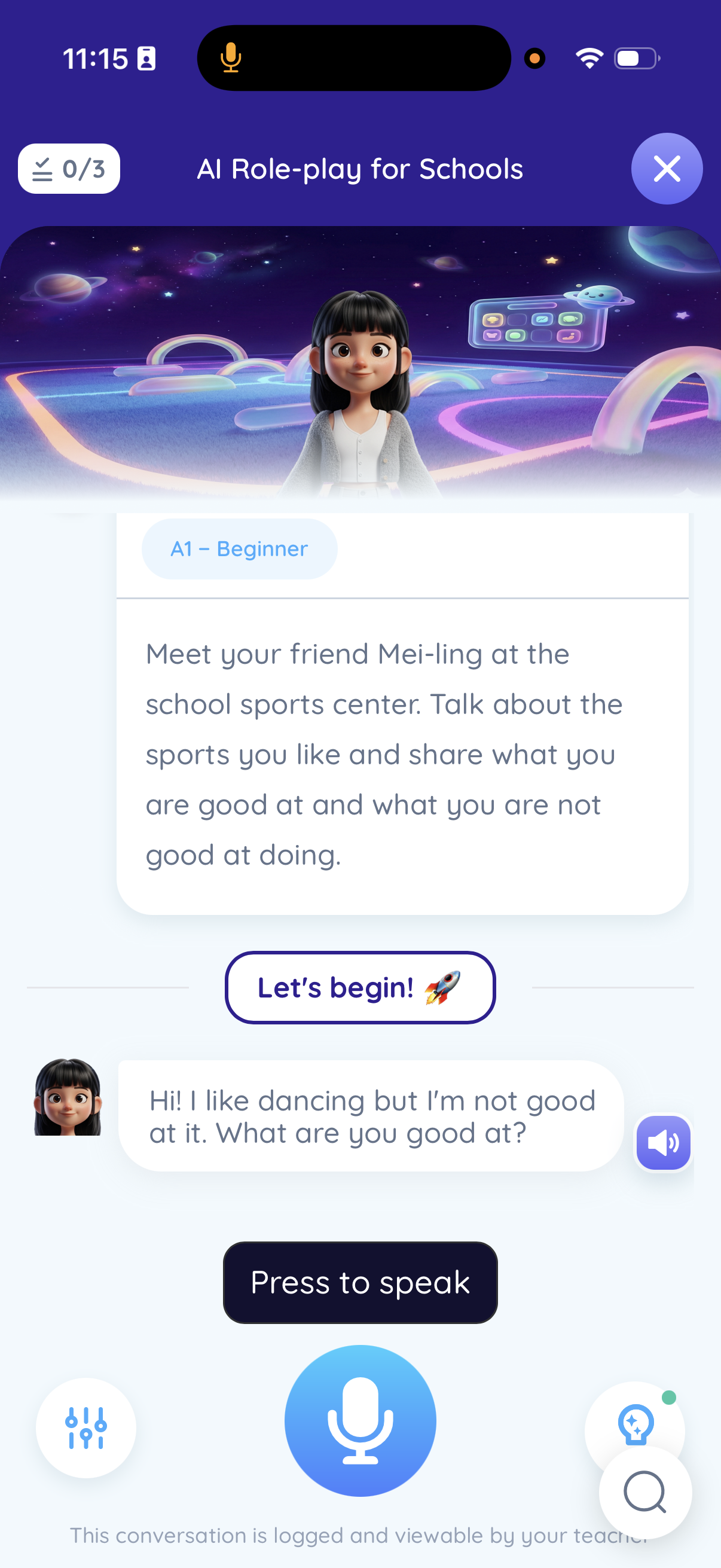
The ELSA School icon will now appear on your device's home screen, just like a regular app.
Tap the icon to open it.
Log in to start learning!
Uninstall
To uninstall the app, simply long-press the icon and delete the app normally.
Was this article helpful?
That’s Great!
Thank you for your feedback
Sorry! We couldn't be helpful
Thank you for your feedback
Feedback sent
We appreciate your effort and will try to fix the article