ELSA School's organization structure allows you to create a hierarchy with a "Parent" organization and multiple "Child" organizations (e.g., a main school headquarters and its various branches). This structure simplifies content management by allowing you to easily share custom lessons (Study Sets) across different branches.
This guide will show you how to share lessons between parent and child organizations.
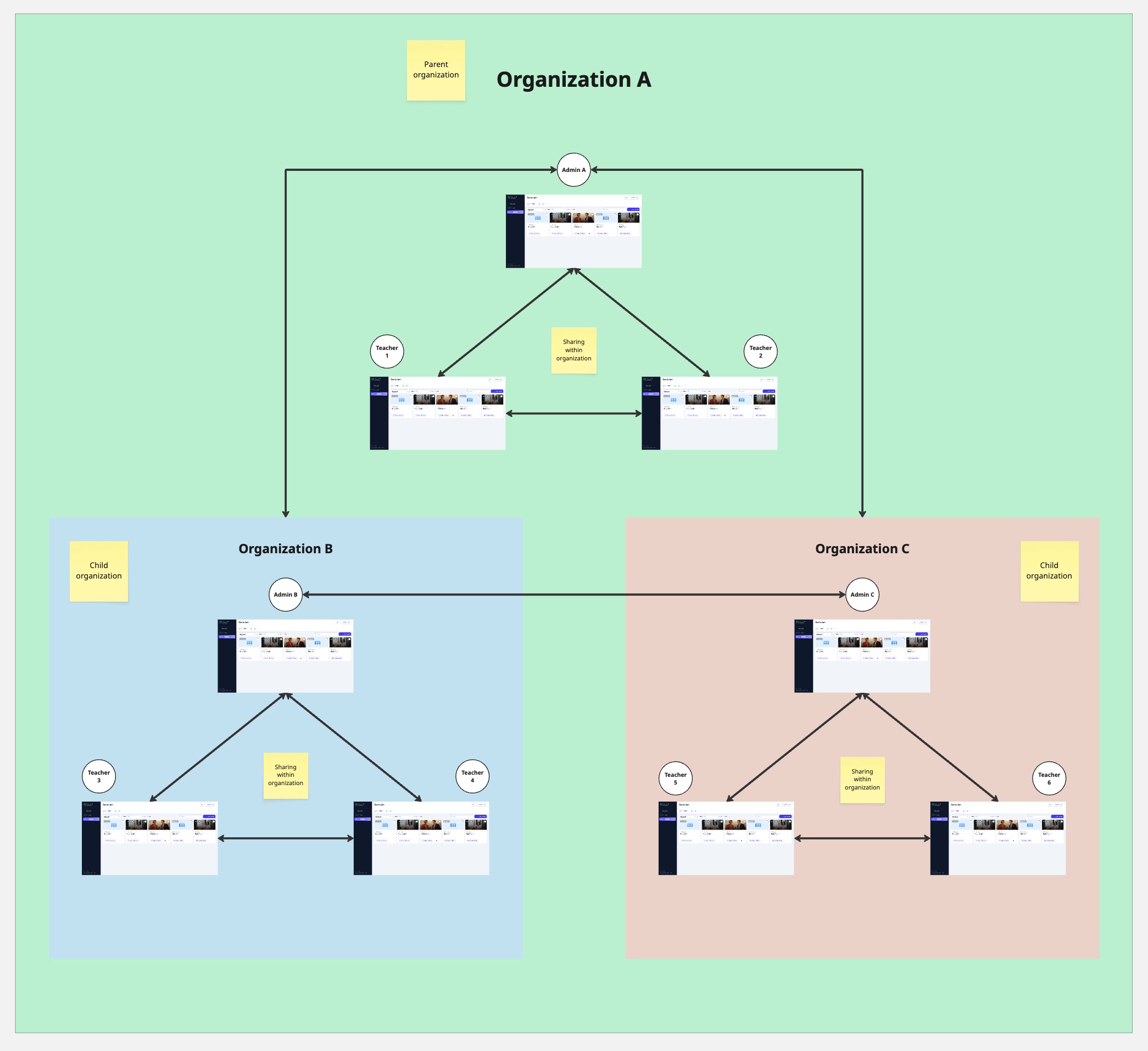
Understanding Sharing Permissions
The sharing logic is designed to be flexible and collaborative. Here’s how it works:
Parent to Child: A Parent organization can share lessons down to any of its Child organizations.
Child to Parent: A Child organization can share lessons up to its Parent organization.
Child to Child: A Child organization can share lessons with other "sibling" Child organizations under the same Parent.
How to Share a Lesson
The process for sharing a lesson is the same regardless of whether you are in a Parent or Child organization. Your permissions will determine which other organizations appear as sharing options.
Navigate to Curriculum
From the main dashboard, click on the Curriculum tab in the left-hand menu.
Select a Lesson to Share
Find the custom lesson (Study Set) you wish to share and click on it to open the Details page.
Open the Sharing Options
On the Details page, locate the Share with section just below the lesson's creator information.
Click on the dropdown menu.
Choose the Organization(s)
A list of available organizations will appear. This may include your Parent, Child, or sibling organizations.
Check the box next to the name of each organization you want to share the lesson with. You can select one or multiple organizations.
Confirm the Share
Once you click away from the dropdown, the lesson is automatically shared. There is no final "save" button.
The selected organization(s) will now be able to access this lesson from their own
Curriculum tab.
Parent → Child
Child → Child
Child → Parent
Was this article helpful?
That’s Great!
Thank you for your feedback
Sorry! We couldn't be helpful
Thank you for your feedback
Feedback sent
We appreciate your effort and will try to fix the article