The Curriculum tab offers two display options for your lessons: Grid View and List View. You can easily switch between them to find your content more efficiently.
Grid View: The default view, which displays your lessons with large thumbnail images.
List View: A compact view that displays more lessons on the screen at once, making it ideal for browsing long lists of content.
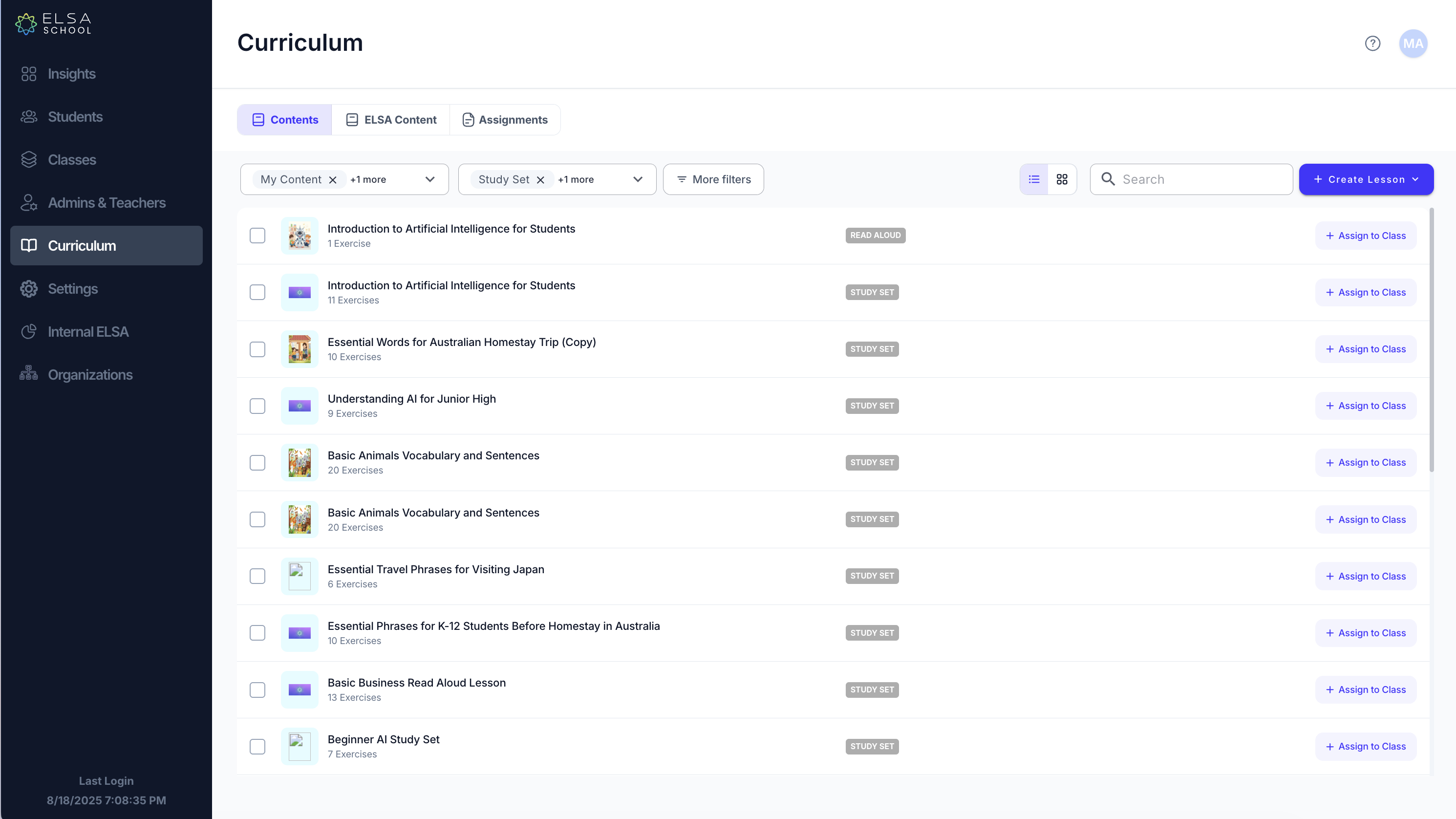
How to Switch Views
Navigate to the Curriculum tab on the left-hand menu.
Above the lesson list on the right side of the screen, locate the two view toggle icons.
Click the List View icon (represented by three horizontal lines) to change the layout.
Your lessons will now appear in a compact list. To return to the default view, simply click the Grid View icon (represented by four squares).
Was this article helpful?
That’s Great!
Thank you for your feedback
Sorry! We couldn't be helpful
Thank you for your feedback
Feedback sent
We appreciate your effort and will try to fix the article